Page 6 of 8

Today I was honored to be recognized as a VMware vExpert for the second year in a row!

What is a VMware vExpert? Well let’s get this out of the way…it has nothing to do with how smart you are. Although, most of us that are vExperts like to think we are smart 😉 . Being a vExpert has everything to do with “giving back” by sharing your knowledge with the VMware community.

For many it’s by means of blogging. For others it may be taking part in a leadership role at their local VMUG group. And yet for others it might be advocacy of VMware/virtualization technologies through social media platforms. Or you may be like me and do a combination of them all. Whatever the case maybe, the main point is to spread knowledge, experiences, and maybe even some of your IT horror stories to save the next guy or gal from a RGE (Resume Generating Event). Read Full Article

vRA Icon

This post will be a short walkthrough on how to create a tenant in vRealize Automation 7. After you complete the initial installation of vRA, you have the default tenant that is created. The default tenant is not where we want to create and deploy any services. The default tenant should be used for creating other tenants and defining other administrators. To begin creating our first tenant we must first log into our default tenant. Navigate to https://FQDN or IP of vRA appliance/ and login with the administrator account that was created during installation

t1

Read Full Article

vcsa penguin

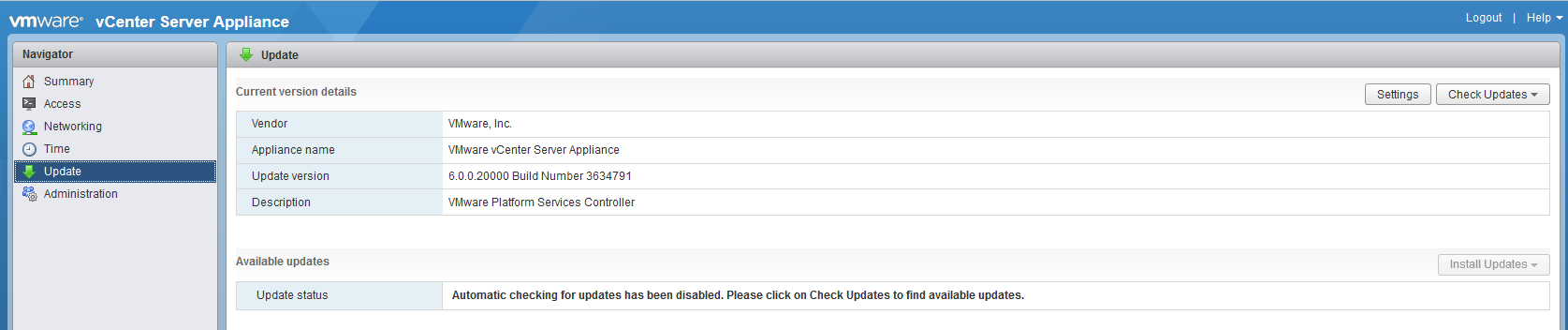
I’ve really come to appreciate more and more the VCSA. One of the times that I really appreciate it, is when it’s time to apply patches/updates to it. This post is just a simple….and I do mean simple…look at how to update your external PSC and then your VCSA when there’s a new update from VMware.

First things first….make sure you have a good backup of your VCSA and PSC. Also I recommend taking a snapshot of your PSC and VCSA but without preserving the VM’s memory state.

Then login into your PSC using the root account at https:// <FQDN or IP of appliance>:5480. Once logged in, go under the Update section.

vc1

Read Full Article

VMwareNSX

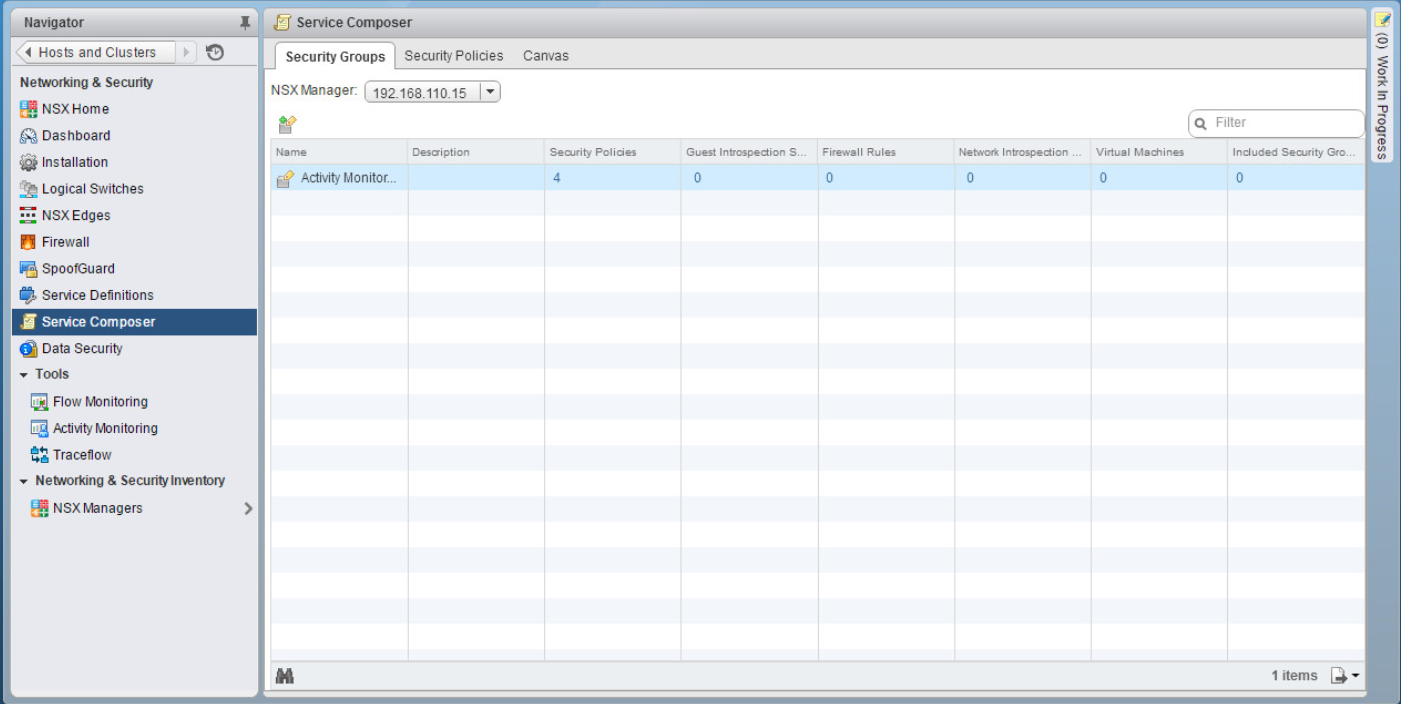
The NSX service composer is one of my favorite features of NSX. I’ve never really considered myself to be lazy when it comes to doing something the right way…but I’ve never been one to overwork myself to do that. Dad always said “Work smarter, not harder”. The service composer is a combination of both. It’s a way to create multiple rules in your virtual infrastructure for items that are alike or that need to have the same type of services allowed or denied. For you Cisco guys, this is a familiar concept. Think objects and object groups on a ASA. For example, say I have a group of 6 web servers that I want to block ICMP traffic. Well that would normally mean that I would have to create 6 individual rules, one for each web server, to block this. With the service composer, however, I can create one rule. With the use of security groups and security policies, service composer makes life easy…and that doesn’t mean that you’re lazy 🙂

In this blog post, I will show you how to use the service composer to create a security policy and apply it to multiple servers.

First navigate to Networking & Security > Service Composer

sc2 Read Full Article

VMwareNSX

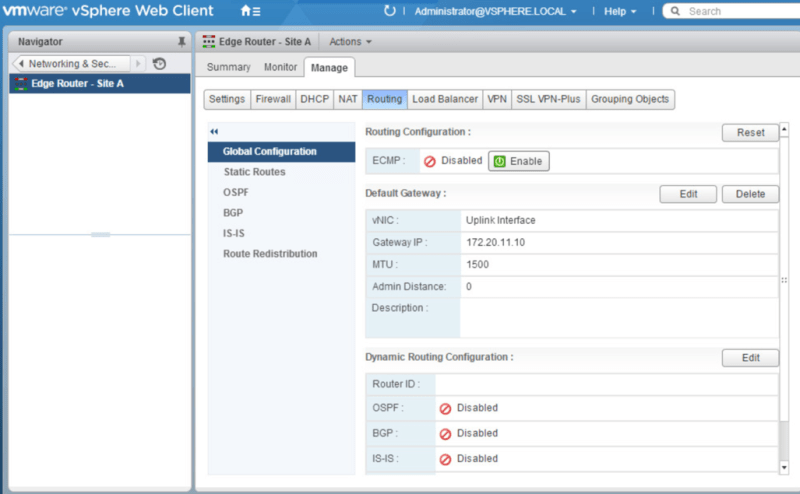
Picking up from where we left off, in our last post, we deployed the NSX Edge Appliance and created interfaces to connect to each of our logical switches to allow for communication between the VMs on each logical switch. In this post we will configure OSPF as our dynamic routing protocol between the edge appliance and the logical router.

Navigate to Networking & Security>NSX Edges. Double click the Edge Router. Under Manage>Routing>Global Configuration click Edit by Dynamic Routing Configuration.

dyr1 Read Full Article

VMwareNSX

In this post we will be deploying an additional Edge Services Gateway (ESG) so that we can take advantage of Equal-Cost Multipath (ECMP) from the distributed logical router to the ESG. The advantage of using ECMP is that you can split the traffic from VMs evenly between the ESGs and have multiple bidirectional links. Let’s get started configuring!

Navigate to Networking & Security > NSX Edges and click the green + to begin deploying a new ESG.

ecmp1

Read Full Article

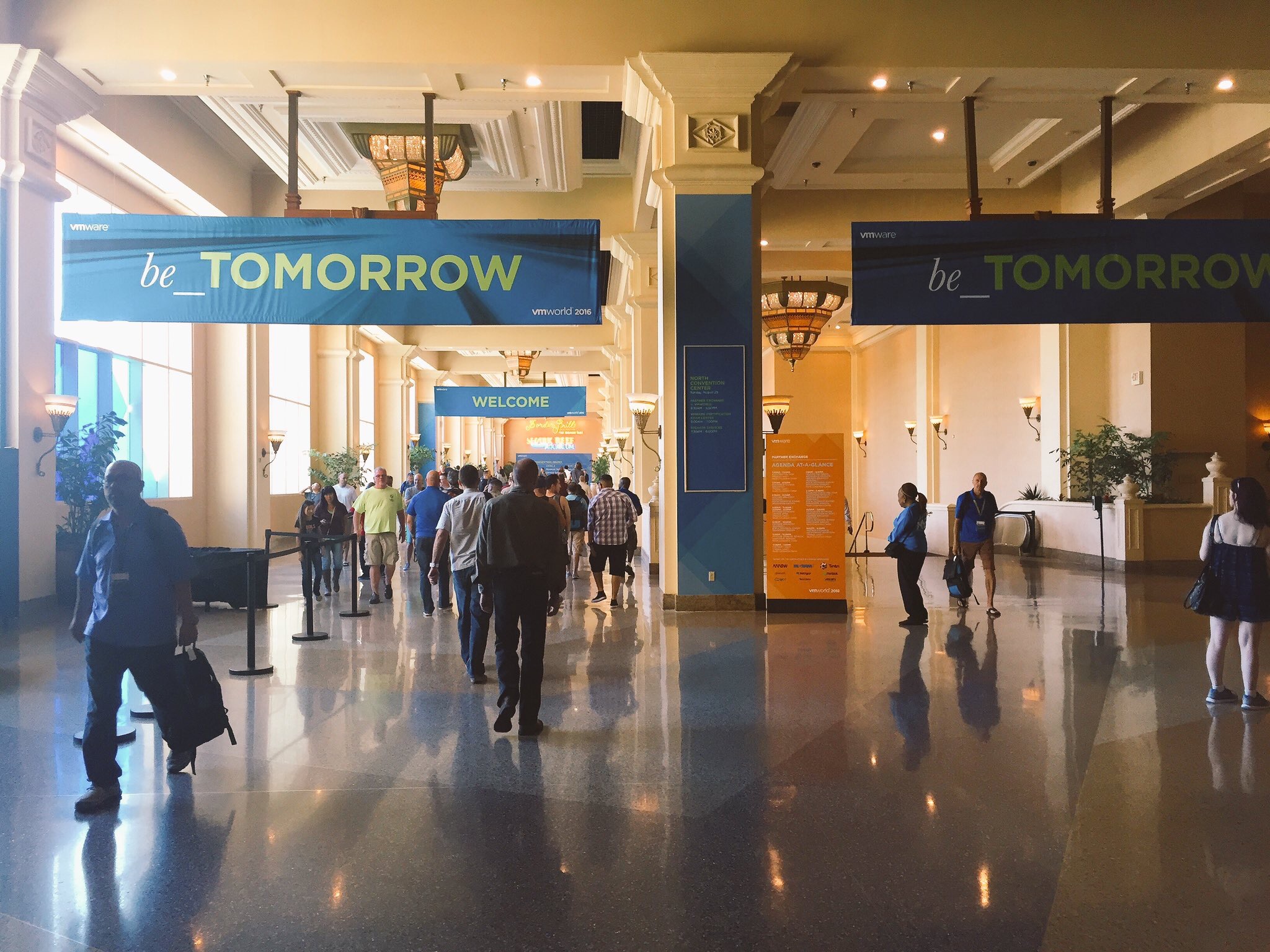
VMWorld 2016 for me started off on a good foot! Let’s start of by just saying location, location, location….Vegas is definitely a great location for VMWorld this year. A little hot….well a lot of HOT…but it’s a fun place to be for a conference. On top of that you’re surrounded by about 25,000 VMware/virtualization geeks that share your same interest for virtual technology. What a great environment for networking opportunities or just meeting up with old friends!! Read Full Article

VMwareNSX

Picking up from where we left off in our last post, we will be configuring routing between the physical network and the virtual network by means of the NSX Edge Services Gateway appliance.

A little backgroud about the NSX Edge:

NSX Edge provides network edge security and gateway services to isolate a virtualized network. The NSX Edge gateway connects isolated, stub networks to shared (uplink) networks by providing common gateway services such as DHCP, VPN, NAT, dynamic routing, and Load Balancing. Common deployments of NSX Edge include in the DMZ, VPN Extranets, and multi-tenant Cloud environments where the NSX Edge creates virtual boundaries for each tenant.

So to begin, we need to deploy a NSX edge appliance. We do this by navigating to Networking & Security > NSX Edges and clicking the green +

esg1

Read Full Article

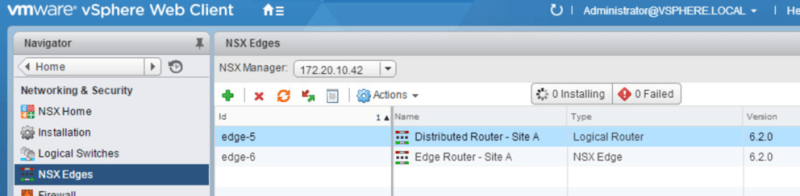
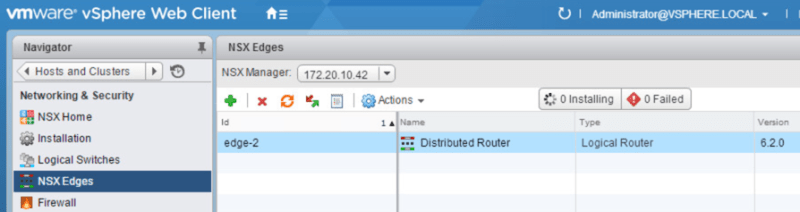
In our last post, we deployed our logical switches and tested L2 connectivity between VMs on the same logical switch. As mentioned in that post, in order to allow communication between logical switches, we will need to deploy and configure a distributed logical router. That’s what we will be going over in this post.

First navigate to Networking & Security > NSX Edges and make sure the correct NSX manager is selected. Click the green +.

dlr

Read Full Article

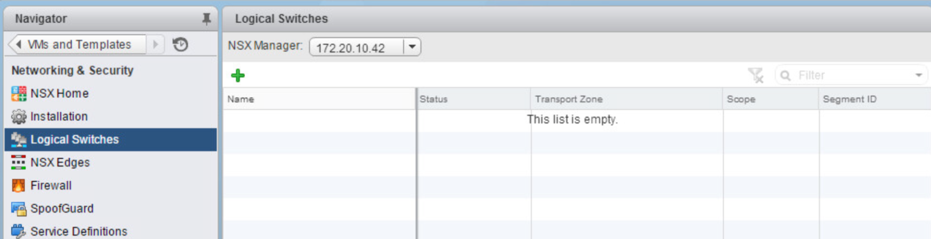
Continuing from where we left off with deploying NSX controllers and preparing our hosts for NSX, now its time to deploy a logical switch and add virtual machines to it. A logical switch can be looked at as a logical broadcast domain to which virtual machines can be connected to. The segment IDs that are associated with them can be looked at as VLAN tags for logical switches. Each logical switch will have its own segment ID or VXLAN Network Identifier (VNI) assigned to it from the segment ID pool that was created under the Host Preparation tab.

To deploy a logical switch, navigate to Networking & Security > Logical Switches and click the green + symbol.

ls1

Read Full Article