VMware

VMwareNSX

Picking up from where we left off in our last post, we will be configuring routing between the physical network and the virtual network by means of the NSX Edge Services Gateway appliance.

A little backgroud about the NSX Edge:

NSX Edge provides network edge security and gateway services to isolate a virtualized network. The NSX Edge gateway connects isolated, stub networks to shared (uplink) networks by providing common gateway services such as DHCP, VPN, NAT, dynamic routing, and Load Balancing. Common deployments of NSX Edge include in the DMZ, VPN Extranets, and multi-tenant Cloud environments where the NSX Edge creates virtual boundaries for each tenant.

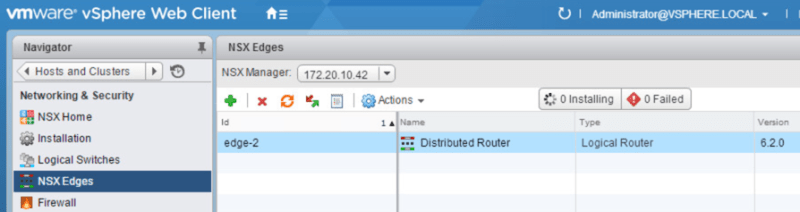
So to begin, we need to deploy a NSX edge appliance. We do this by navigating to Networking & Security > NSX Edges and clicking the green +
esg1

Read Full Article

Continuing from where we left off with deploying NSX controllers and preparing our hosts for NSX, now its time to deploy a logical switch and add virtual machines to it. A logical switch can be looked at as a logical broadcast domain to which virtual machines can be connected to. The segment IDs that are associated with them can be looked at as VLAN tags for logical switches. Each logical switch will have its own segment ID or VXLAN Network Identifier (VNI) assigned to it from the segment ID pool that was created under the Host Preparation tab.

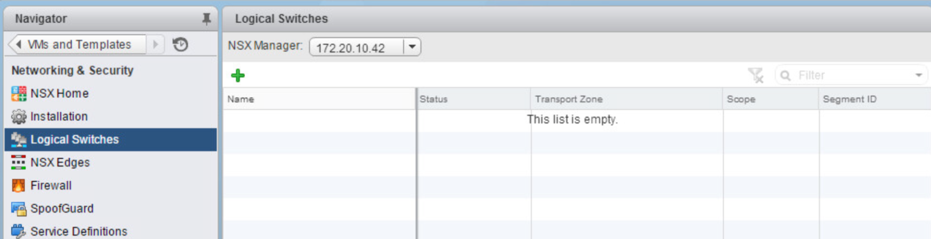
To deploy a logical switch, navigate to Networking & Security > Logical Switches and click the green + symbol.

ls1

Read Full Article

vsphere icon

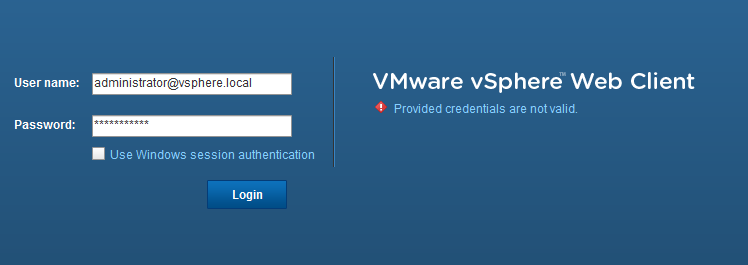
So, I was rebuilding my lab yesterday…getting ready to begin studying for the VCAP exams…and after building the vCenter server, I go to log in for the first time and get this…

3-22-2016 9-39-25 AM

Now I just know that I’m typing in the password correctly. I mean, I did just make it 10 minutes prior to this! But whatever the case, I can’t get in. So now I need to reset the password on the SSO admin account. Here are the steps to do just that. Read Full Article

In my last post, I walked you through the upgrade process for going to Veeam v9. After having some time to work with the product and exploring the many new features, I have come up with my top 3 that I want to share with you. Let’s jump straight into it:

Stand-alone backup console

b22

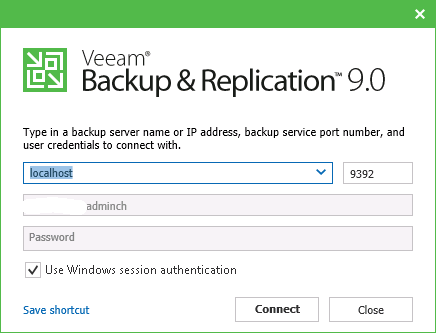
In v8 and previous releases of Veeam, I’d have to login directly to the backup server to manage any parts of my backup infrastructure. Many times this meant asking nicely (kicking off) if one of the other admins were still using the server so that I could login. No more!!! Now the console supports connecting to a remote Veeam backup server. You can install the client right on your workstation and connect just as if you were on the server itself. Also the new look of the console is great. Not that the other console wasn’t pleasant to look at but….the changes that were made are nice!

2-2-2016 11-17-08 AM Read Full Article

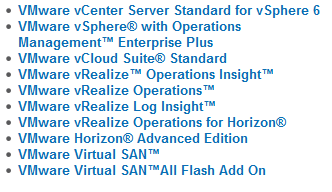
So, I finally decided to take advantage of my VMUG advantage subscription and create a vCloud Air account. When you sign up for VMUG Advantage, there are a lot of perks that come with it. One of the many benefits is the EVALExperience, which gives you a 1 year evaluation license to quite a few VMware products.

12-17-2015 2-51-49 PM

One of those products is vCloud Air. They give you a $600 credit ($300 every 6 months) towards vCloud Air.12-17-2015 2-54-09 PM

I wanted to try out William Lam’s ESXi appliance and see if I could deploy it there. Here’s a run down of what it takes to do it:

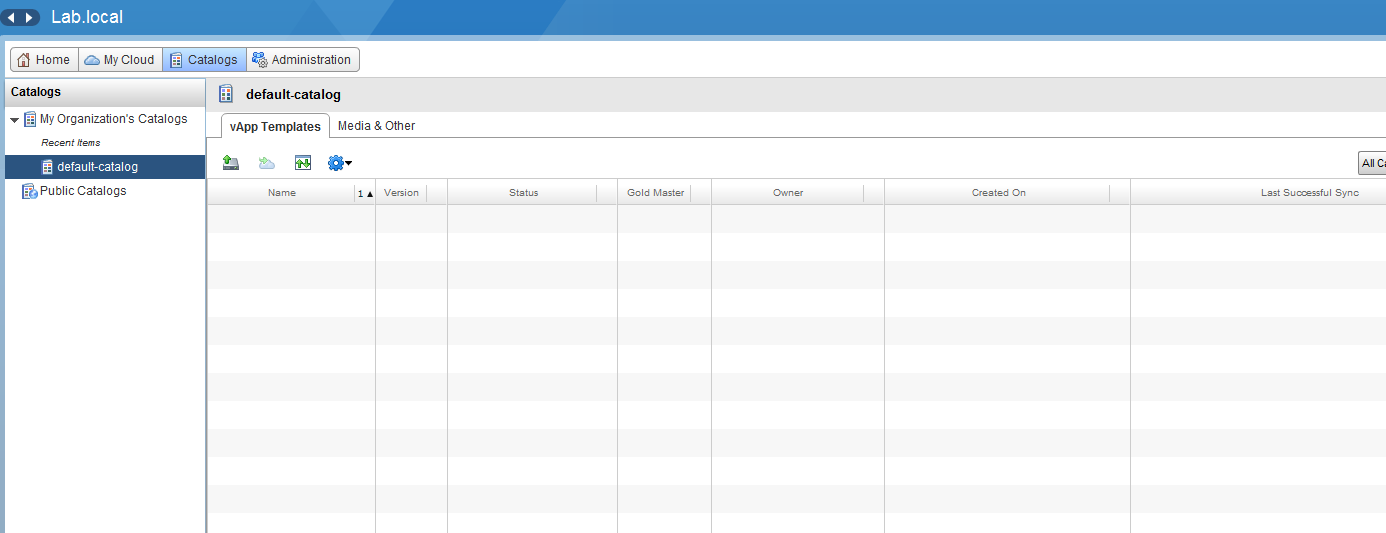
After logging into vCloud Air, I thought it was going to be a simple upload of the OVA file and deploy….wrong!

12-17-2015 1-21-35 PM

Enter a caption

Read Full Article