NSX

VMwareNSX

Picking up from where we left off in our last post, we will be configuring routing between the physical network and the virtual network by means of the NSX Edge Services Gateway appliance.

A little backgroud about the NSX Edge:

NSX Edge provides network edge security and gateway services to isolate a virtualized network. The NSX Edge gateway connects isolated, stub networks to shared (uplink) networks by providing common gateway services such as DHCP, VPN, NAT, dynamic routing, and Load Balancing. Common deployments of NSX Edge include in the DMZ, VPN Extranets, and multi-tenant Cloud environments where the NSX Edge creates virtual boundaries for each tenant.

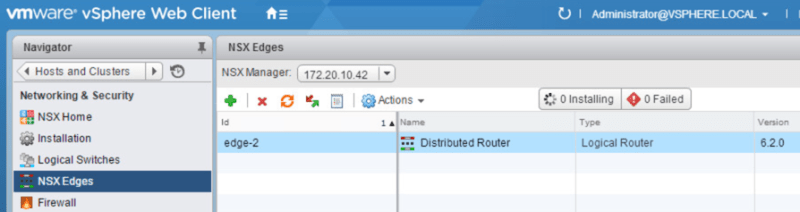
So to begin, we need to deploy a NSX edge appliance. We do this by navigating to Networking & Security > NSX Edges and clicking the green +
esg1

Read Full Article

In our last post, we deployed our logical switches and tested L2 connectivity between VMs on the same logical switch. As mentioned in that post, in order to allow communication between logical switches, we will need to deploy and configure a distributed logical router. That’s what we will be going over in this post.

First navigate to Networking & Security > NSX Edges and make sure the correct NSX manager is selected. Click the green +.

dlr

Read Full Article

Continuing from where we left off with deploying NSX controllers and preparing our hosts for NSX, now its time to deploy a logical switch and add virtual machines to it. A logical switch can be looked at as a logical broadcast domain to which virtual machines can be connected to. The segment IDs that are associated with them can be looked at as VLAN tags for logical switches. Each logical switch will have its own segment ID or VXLAN Network Identifier (VNI) assigned to it from the segment ID pool that was created under the Host Preparation tab.

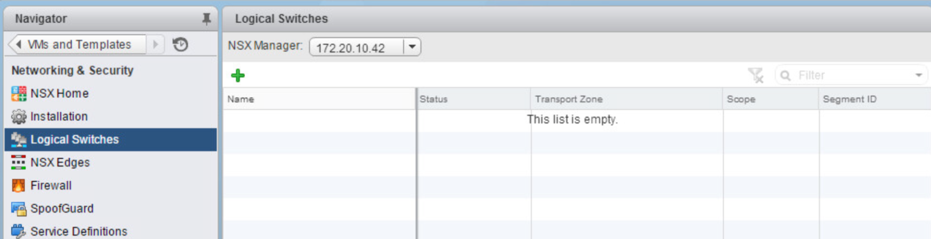
To deploy a logical switch, navigate to Networking & Security > Logical Switches and click the green + symbol.

ls1

Read Full Article